
How to Add a Signature to PDF, Word, and Google Docs
Create a clean transparent PNG signature once, then place it in a PDF, Word file, or Google document without a visible white rectangle. These steps cover image placement; they do not turn a graphic into a certificate-backed digital signature.
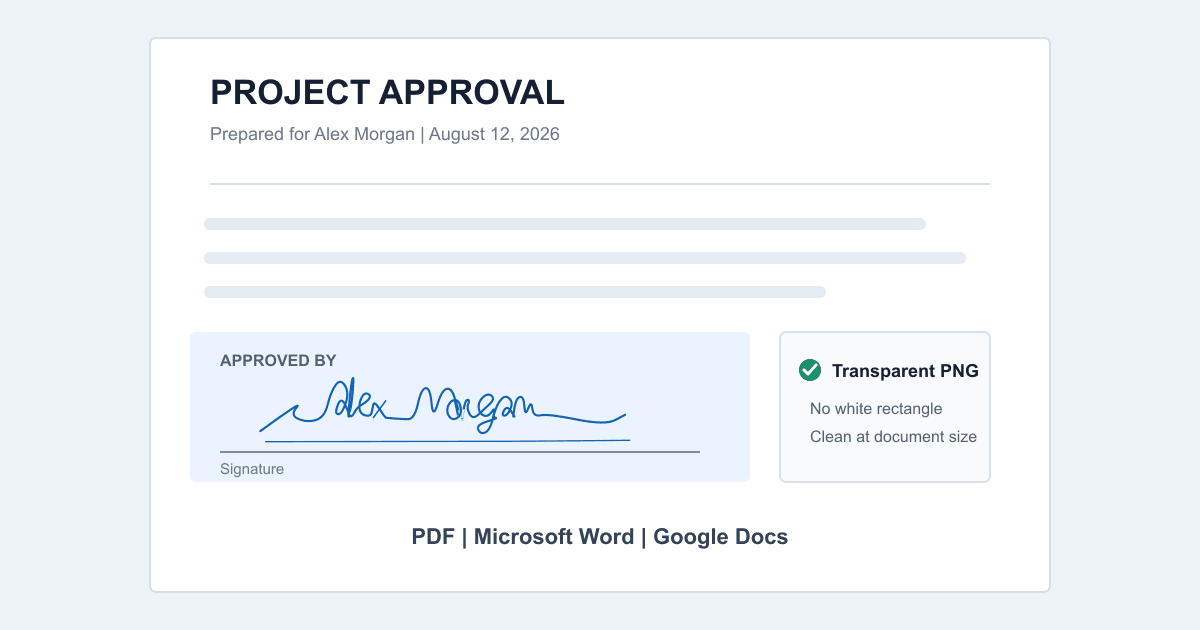
Prepare the signature image
- Create, draw, or clean the signature. Use the AI signature generator, draw your handwritten signature online, or remove the paper background from an existing signature photo.
- Select Transparent. A transparent background lets the page color and signature line remain visible around the ink.
- Download PNG. The generator exports a 1200×320 PNG, which is large enough to resize down cleanly for ordinary documents.
- Name the file clearly. A filename such as
alex-morgan-signature.pngis easier to find later than a generic download name.
Privacy note: generation and export happen in your browser. The image is only sent elsewhere when you upload it to a document service yourself.
Add a signature image to a PDF in Adobe Acrobat
- Open the PDF in Acrobat and choose E-Sign, then Fill & Sign.
- Select Add signature. In the signature dialog, choose the image option and select the transparent PNG from your device.
- Place the signature over the intended field. Drag it to move it and use a corner control to resize it without changing its proportions.
- Save a new copy, reopen it, and confirm that the signature appears in the right position on every device where the document will be reviewed.
Adobe documents image-based signatures alongside typed and drawn options in its current Acrobat Fill & Sign instructions.
Insert a signature in Microsoft Word
- Place the cursor near the signature line, choose Insert, then Pictures, and select the PNG from your device.
- Resize from a corner until the signature fits the line. Avoid stretching only the height or width, which makes the handwriting look distorted.
- Use Word's image layout controls when the signature needs to sit above a line instead of behaving like a text character.
- For repeated use in desktop Word, save the image and associated contact text as an AutoText or Quick Parts entry.
Microsoft's Word signature instructions cover inserting a signature picture, cropping it, and saving a reusable signature block.
Place a signature in Google Docs
- Open the document and choose Insert, Image, then Upload from computer.
- Select the transparent PNG and resize it with a corner handle.
- Choose Wrap text or In front of text when the signature needs to move independently over a line.
- Check the page in print layout and export a PDF copy to verify the final position before sharing it.
Google's current image insertion guide explains upload sources, resizing, wrapping, and positioning. Some position controls require a document in pages mode rather than pageless mode.
Choose PNG, SVG, or JPG
| Format | Best use | Background | Practical limit |
|---|---|---|---|
| PNG | PDF, Word, Google Docs, and email | Transparent or white | Best cross-app choice; resize down rather than taking a screenshot |
| SVG | Printing, design tools, and large-scale artwork | Transparent | Not accepted by every document or mail editor |
| JPG | Documents that always use a white page | White | Shows a rectangle on colored backgrounds |
Size and placement that look natural
Start with a width around 180–300 pixels for a normal page, then adjust against the actual signature line. The correct size depends on the document layout, not the original image dimensions. Keep the aspect ratio locked and leave enough space for a printed name or date.
For Acrobat Sign profiles, Adobe recommends an image at least 60 pixels tall and up to 600 pixels wide. The generator's 1200×320 PNG exceeds that minimum and is intended to be reduced at placement time rather than enlarged after export.
Fix common signature image problems
A white rectangle appears
The file is probably a JPG or was exported with a white background. Return to the generator, choose Transparent, and download PNG.
The signature looks blurry
Use the downloaded PNG rather than a screenshot. Insert the original 1200×320 file and resize it down inside the document.
The image moves when text changes
Change the wrapping or positioning option so the signature can stay over the intended line. Recheck the exported PDF because layout engines can handle anchored images differently.
The signature is stretched or cropped
Undo the resize, restore the original aspect ratio, and drag a corner handle. Avoid dragging only a side handle.
Signature image, e-signature, and digital signature are different
A PNG placed on a page is a visual signature image. By itself, it does not verify who placed it, capture consent, lock the document, or create an audit trail. Whether it is appropriate depends on the document and the parties involved.
When identity, integrity, or a formal signing record matters, use the signing workflow required by the document owner. Adobe distinguishes ordinary image or drawn e-signatures from certificate-based digital signatures that use a digital ID and can lock a PDF against later changes.
Official workflow references
Create the file before opening your document
Generate a transparent signature PNG locally in your browser, then follow the workflow for the document editor you use.