
Choose the ink and pen
Select a dark ink color, then compare fountain, ballpoint, and brush behavior. The guide line helps with alignment but is never included in the exported file.
Write your real signature with a mouse, finger, trackpad, stylus, or pressure-sensitive pen. Undo mistakes, adjust the ink, and copy or download a clean transparent image.
Select a dark ink color, then compare fountain, ballpoint, and brush behavior. The guide line helps with alignment but is never included in the exported file.
Use a mouse or trackpad on desktop, or a finger and stylus on mobile. Undo and redo operate one complete stroke at a time, so a mistake does not erase the whole signature.
Choose Transparent for documents with any background or White for a fixed paper rectangle. Copy PNG when supported, or download PNG and SVG files directly.
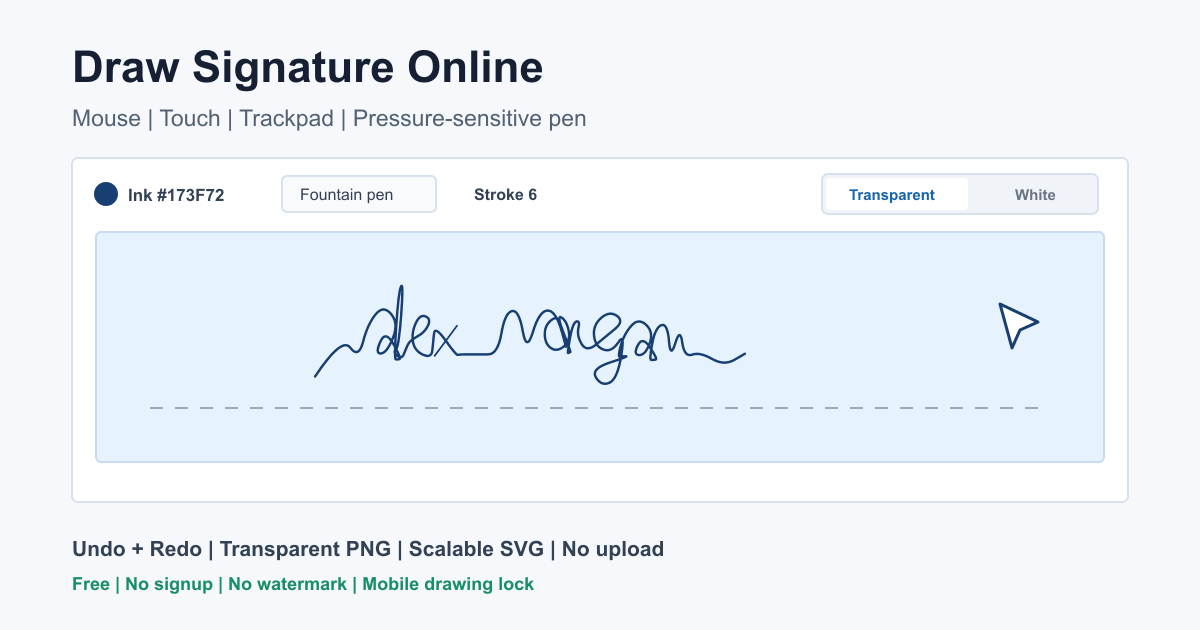
The drawing surface uses Pointer Events and captures the active pointer until each stroke ends. On a phone or tablet, touch gestures are disabled only inside the pad while you draw. This prevents the page from moving, overscrolling, or treating a signature stroke as browser navigation while normal page scrolling remains available outside the pad.
Compatible pens can report pressure for each point. Fountain and brush modes use that pressure to vary stroke weight, while ballpoint mode stays intentionally consistent. Devices without pressure data receive a stable middle value, so an ordinary mouse or finger still produces predictable ink.
Private by design: points are stored only in the current browser tab. The signature is rendered with Canvas and converted to PNG or SVG locally. No name, stroke coordinates, clipboard image, or download body is sent to the Worker or a third-party signature API.
Balanced pressure variation makes downstrokes feel more expressive without making the signature difficult to read. It is a practical default for formal names and initials.
A fixed, narrower line resembles everyday office signing and behaves consistently across mouse, touch, and pen input. Use it when repeatability matters more than flourish.
Wider pressure variation creates stronger contrast and works well for bold autographs or creative marks. Reduce Stroke width if small loops begin to merge.
PNG is the most compatible choice for PDF editors, Microsoft Word, Google Docs, presentations, invoices, and email clients. With Transparent selected, only the ink is stored, so there is no white rectangle around the signature. Auto-crop removes unused transparent margins while retaining padding around the outer strokes.
SVG stores the drawing as vector line segments and remains sharp when enlarged for printing or design work. A white SVG export includes a white rectangle; a transparent SVG contains only the strokes. For exact placement instructions, follow the guide to add a signature image to PDF, Word, and Google Docs.
Prefer a generated design? Compare typed and vector concepts in the AI signature generator, or use the cursive signature generator to compare your full name and initials across 30 fonts. Already have a paper signature photo? Use the signature background remover instead of redrawing it.
This tool creates a reusable graphic based on strokes you draw. It does not verify who drew them, record consent, timestamp a document, lock later edits, or provide an audit trail. A document owner may accept an inserted image for a routine workflow, but regulated or high-value agreements can require a dedicated electronic-signature process with authentication and evidence. Follow the requirements provided by the recipient.